DevTools Plugin (Rozenite)
Mock geolocation data in development with an interactive map interface using the Rozenite DevTools plugin.
Prerequisites
This plugin requires Rozenite 2.2 or newer to be set up in your project. Follow the Rozenite installation guide before proceeding.
This DevTools plugin only works with the package import (react-native-nitro-geolocation). It does not support the Compat API (react-native-nitro-geolocation/compat).
Installation
Setup
Add the devtools hook to your app entry point:
With Initial Position
Using City Presets
Choose from 20 pre-configured city locations:
Using Custom Coordinates
Manually define a position with specific coordinates:
Opening DevTools
- Start your React Native app with Metro bundler
- Press
jin the Metro terminal to open DevTools - Enable the Geolocation plugin from the Rozenite DevTools panel
- Start mocking locations!
Features
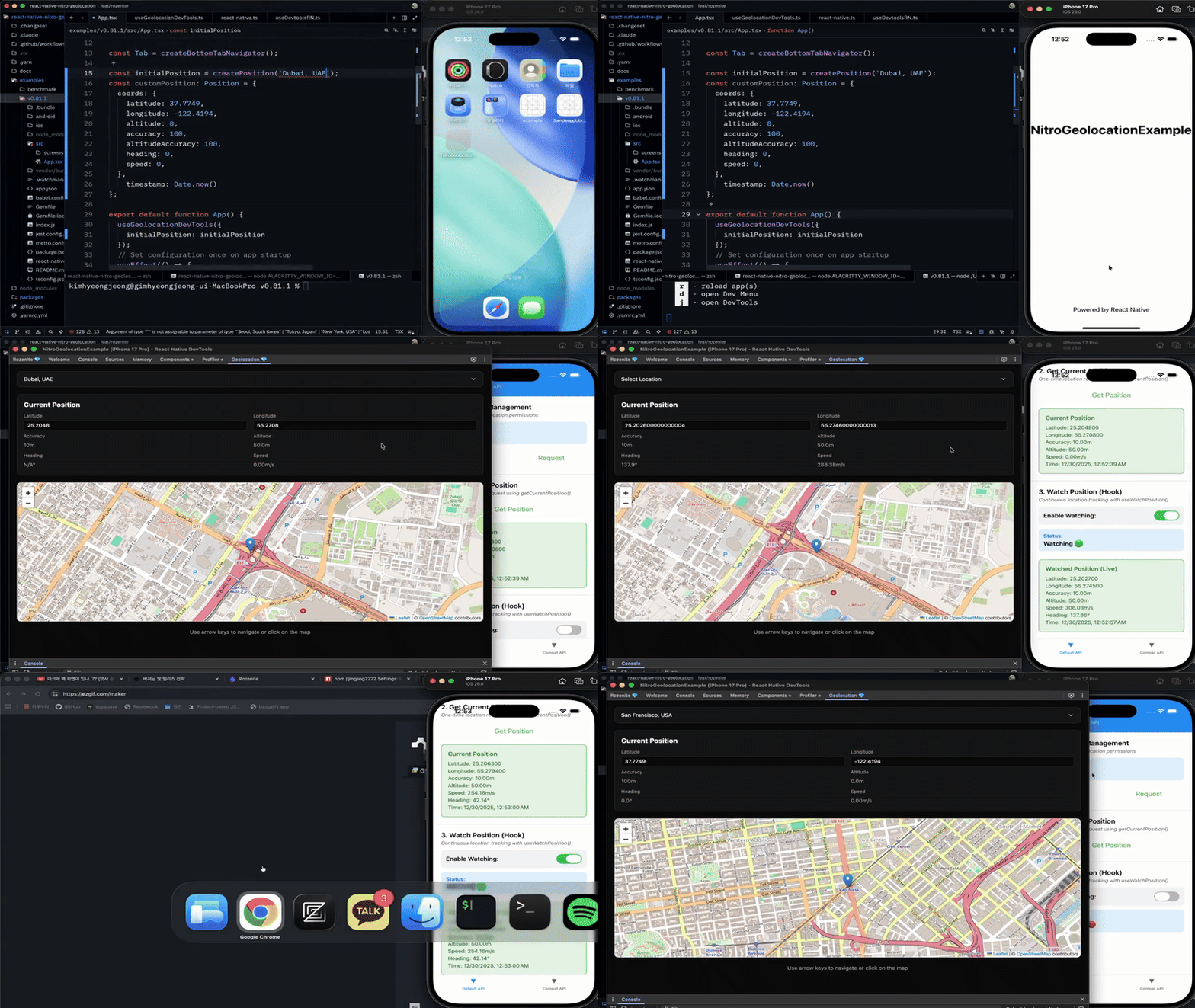
Interactive Map Control
- Click to set location: Click anywhere on the map to instantly update device position
- Visual feedback: Real-time marker updates as you change location
- Zoom and pan: Full map navigation support
Keyboard Navigation
Use arrow keys for precise position adjustments:
↑Move north↓Move south←Move west→Move east
Manual Input
Enter exact coordinates via input fields:
- Latitude: Direct decimal degree input
- Longitude: Direct decimal degree input
- Auto-updates map and position when changed
Location Presets
Quick access to 20 major cities worldwide:
Asia-Pacific: Seoul, Tokyo, Beijing, Shanghai, Hong Kong, Singapore, Mumbai, Bangkok, Sydney
Europe: London, Paris, Berlin, Moscow
Americas: New York, Los Angeles, San Francisco, São Paulo, Mexico City, Toronto
Middle East: Dubai
Real-time Position Data
The plugin automatically calculates and updates:
- Heading: Direction of movement (0-360°)
- Speed: Velocity based on distance over time (m/s)
- Accuracy: Position accuracy in meters
- Altitude: Optional altitude data
- Timestamp: Precise update timing
Demo
How It Works
The DevTools plugin uses an event-driven architecture:
- Ready Signal: DevTools UI sends a "ready" signal when mounted
- Initial Position: App responds with the configured initial position
- Position Updates: UI sends position changes to the app in real-time
- Global State: Position data is stored globally and available to current-position, cache, and position-watch APIs
Development Workflow
Typical Usage
Testing Scenarios
Test navigation:
- Select a start location from presets
- Click a destination on the map
- Observe your app update in real-time
Test accuracy handling:
- Monitor the accuracy value in DevTools
- Test how your app handles low accuracy readings
Test movement:
- Use arrow keys for smooth movement
- Verify heading and speed calculations
- Test distance-based triggers
Each mock watch preserves its own distanceFilter. Android mock watches also
preserve their own interval and maxUpdates lifecycle, matching the native
Watch Manager v2 delivery contract.
Important Notes
The DevTools plugin should only be enabled in development builds. Rozenite DevTools is automatically disabled in production, so no additional configuration is needed.
The plugin only intercepts calls made through the package import. Compatibility API calls keep their callback behavior.
Troubleshooting
DevTools not connecting:
- Ensure Rozenite DevTools is properly installed
- Check that you've enabled the Geolocation plugin in the DevTools panel
- Try closing and reopening DevTools (press
jagain)
Position not updating:
- Verify
useGeolocationDevTools()is called before any geolocation APIs - Check Metro bundler logs for errors
- Ensure DevTools panel is open and plugin is enabled
Initial position not applied:
- Make sure DevTools is open when the app starts
- The ready signal may be delayed - try reloading the app
Source Code
View the full source code on GitHub: